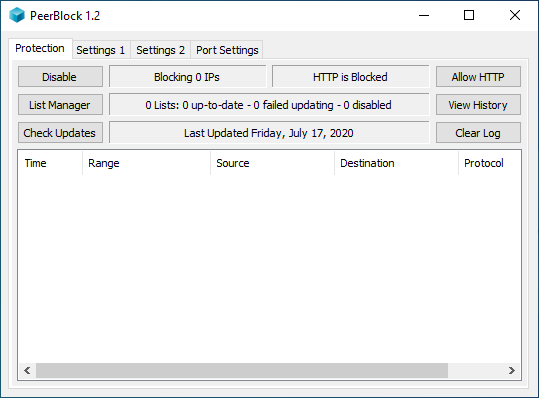
Set PeerBlock to start automatically on Vista/Win 7 with UAC enabled

A security feature added to both Microsoft Windows Vista and Microsoft Windows 7 called "User Account Control" ("UAC") causes many problems with many programs, including PeerBlock. To be able to have PeerBlock automatically start (when UAC is enabled) when your computer starts you must create a Task in Task Scheduler, detailed below. Future versions of PeerBlock may be able to automate this process.

  1. Start by opening Task Scheduler (under Admin tools on your start menu)
  2. Then Create task (using basic task did not work)
    • Name it whatever you like - I used PB logon
    • Description - Whatever you like
    • Then select Run Only when user is logged on
    • Then click run with highest privileges
    • I then clicked on the drop down box and selected configure for windows 7/server 2008R2. If you are using Windows Vista, select "Windows Vista"

    Click to see full size
  3. Then move to the triggers tab
    • Click new
    • Begin the task at Logon
    • Click Any user
    • I did not select any other check boxes, but I did have to unselect (stop task if running for longer than ....)

    Click to see full size
  4. Move to the actions tab
    • Click new
    • Select start a program
    • Then click browse in the program/script section and find your PeerBlock application file
    • (default is C:\Program Files\PeerBlock)
    • Arguments and start in section remain empty

    • Click to see full size
  5. Then move to the conditions tab
    • Uncheck everything in this section.

    Click to see full size
  6. Move to settings tab. In this section have selected:
    • Allow task to be run on demand
    • Run task as soon as possible if schedule missed
    • If task fails restart every minute
    • Attempt to restart 3 times
    • Everything else remains unticked.
    • Last of all in the drop down box for If the task is already running select Do Not Start another instance.

    Click to see full size
  7. Then click OK and you have completed your auto startup sequence.
    Reboot your machine and when windows logs back on you will be happy to see your lists updating (if you update everyday) and the little blue PeerBlock Cube in the task bar. This is not a permanent fix, but at least now you can start PeerBlock automatically and we dont have to wait for a future version to be released.